Custom Indicator Integration
The SMT/Divergence Suite is not limited to its 13 built-in oscillators. The External Indicator option connects to any TradingView indicator output, enabling divergence detection on custom Pine Script indicators, community scripts, and third-party tools. This makes the SMT/Divergence Suite the most flexible divergence detection tool on TradingView.
Setting Up an External Indicator
Step 1: Add Both Indicators
Add the SMT/Divergence Suite and your custom indicator to the same TradingView chart. The custom indicator must be visible on the chart for its output to appear in the source selector.
Step 2: Select External Indicator Mode
Open the SMT/Divergence Suite settings. In the SMT/Divergence Settings group, change the Divergence Indicator dropdown to External Indicator.
Step 3: Connect the Source
Two source input fields become active:
| Input | Purpose | When to Use |
|---|---|---|
| External Indicator (High) | Primary oscillator output | Connect this for all indicators — single or dual output |
| External Indicator Low | Secondary oscillator output | Only for dual-output indicators (e.g., Stochastic RSI %K/%D). Set to the same value as High for single-output indicators |
Click the External Indicator (High) dropdown and select your custom indicator's output from the source list. TradingView shows all available indicator outputs as selectable sources.
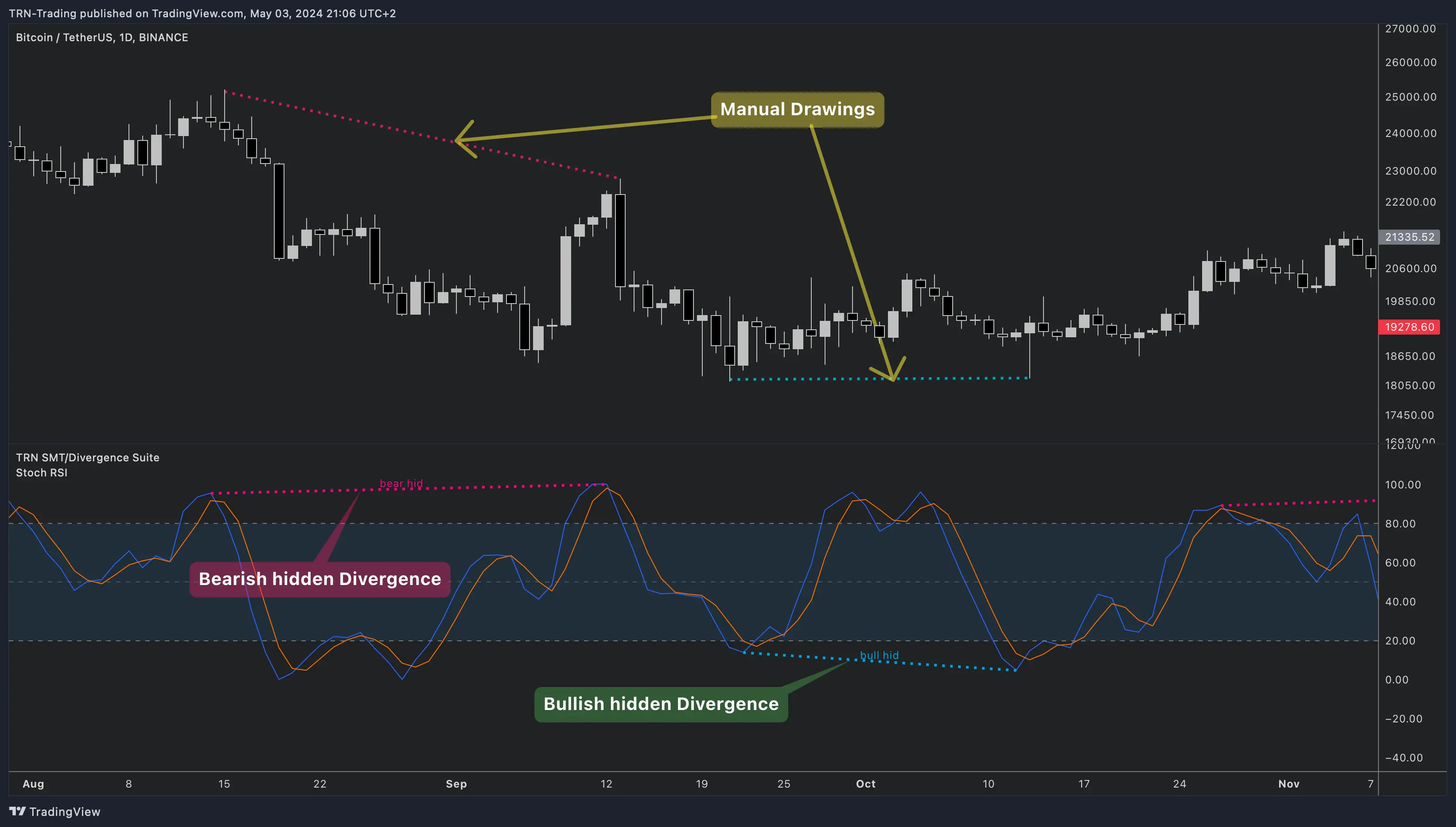
Step 4: Verify Detection
The SMT/Divergence Suite immediately begins detecting divergences on the connected indicator. Divergence lines appear on the oscillator pane (and on the price chart if Show on Main Chart is enabled).
Common custom indicators to connect to the SMT/Divergence Suite include Stochastic RSI, ADX, ATR-based oscillators, custom volume profiles, and proprietary momentum tools. Any indicator that produces a plotted output line on TradingView works as a source.
Dual-Series Indicators
Some indicators produce two related output series — for example, Stochastic RSI has a %K (fast) and %D (slow) line. The SMT/Divergence Suite uses these differently:
- External Indicator (High) — used to identify swing high points on the oscillator
- External Indicator Low — used to identify swing low points on the oscillator
For most custom indicators, set both inputs to the same source. Use separate inputs only when your indicator has distinct high and low series (like Cumulative Delta bars with separate high/low values).
Swing Detection on External Sources
The SMT/Divergence Suite applies the same swing detection engine to external indicators as it does to built-in oscillators. The Swing Style (Standard, Gann, Ticks, Percent), Swing Size, and DTB Strength parameters all affect how the SMT/Divergence Suite identifies swing points on your custom indicator.
If the external indicator produces noisy or volatile output, increase the Swing Size to reduce false divergences. For smooth oscillators, a smaller Swing Size captures more divergence opportunities.
FAQ
Can the SMT/Divergence Suite detect divergences on any custom indicator?
Yes, the SMT/Divergence Suite accepts any TradingView indicator as a divergence source via the External Indicator option. Set the Divergence Indicator to "External Indicator" in the SMT/Divergence Settings group, then connect the custom indicator's output through the External Indicator (High) source selector. This works with Pine Script indicators, community scripts, and third-party tools.
How do I set up a dual-series indicator like Stochastic RSI in the SMT/Divergence Suite?
For dual-series indicators, the SMT/Divergence Suite provides two source inputs. Connect the primary output (e.g., %K line) to External Indicator (High) and the secondary output (e.g., %D line) to External Indicator Low. For single-output indicators, set both inputs to the same source. The SMT/Divergence Suite uses the High input for swing highs and the Low input for swing lows.
Do I need to scale my custom indicator for the SMT/Divergence Suite?
No, the SMT/Divergence Suite automatically adapts to any value range. The divergence detection engine compares swing points on the oscillator rather than absolute values, so indicators with ranges from -100 to 100 work the same as those from 0 to 1. No normalization or scaling is required.