Set Up TRN Indicators on TradingView
This guide walks you through getting TRN indicators onto your TradingView chart, from initial access to a configured workspace ready for analysis.
Step 1: Get Access
Subscribe to TRN Trading to get indicator access:
- Visit TRN Trading pricing and select your plan
- Complete checkout — your TradingView username is linked during registration
- Access is activated immediately
Seven TRN indicators are free on TradingView and need no subscription, so you can put TRN tools on a chart today. Free indicators are public scripts: search the indicator name in the Indicators dialog instead of using the Invite-only scripts tab described below. Browse them in the TRN Indicator Library (filter for Free), or see the FAQ for the full list.
Step 2: Open TradingView Supercharts
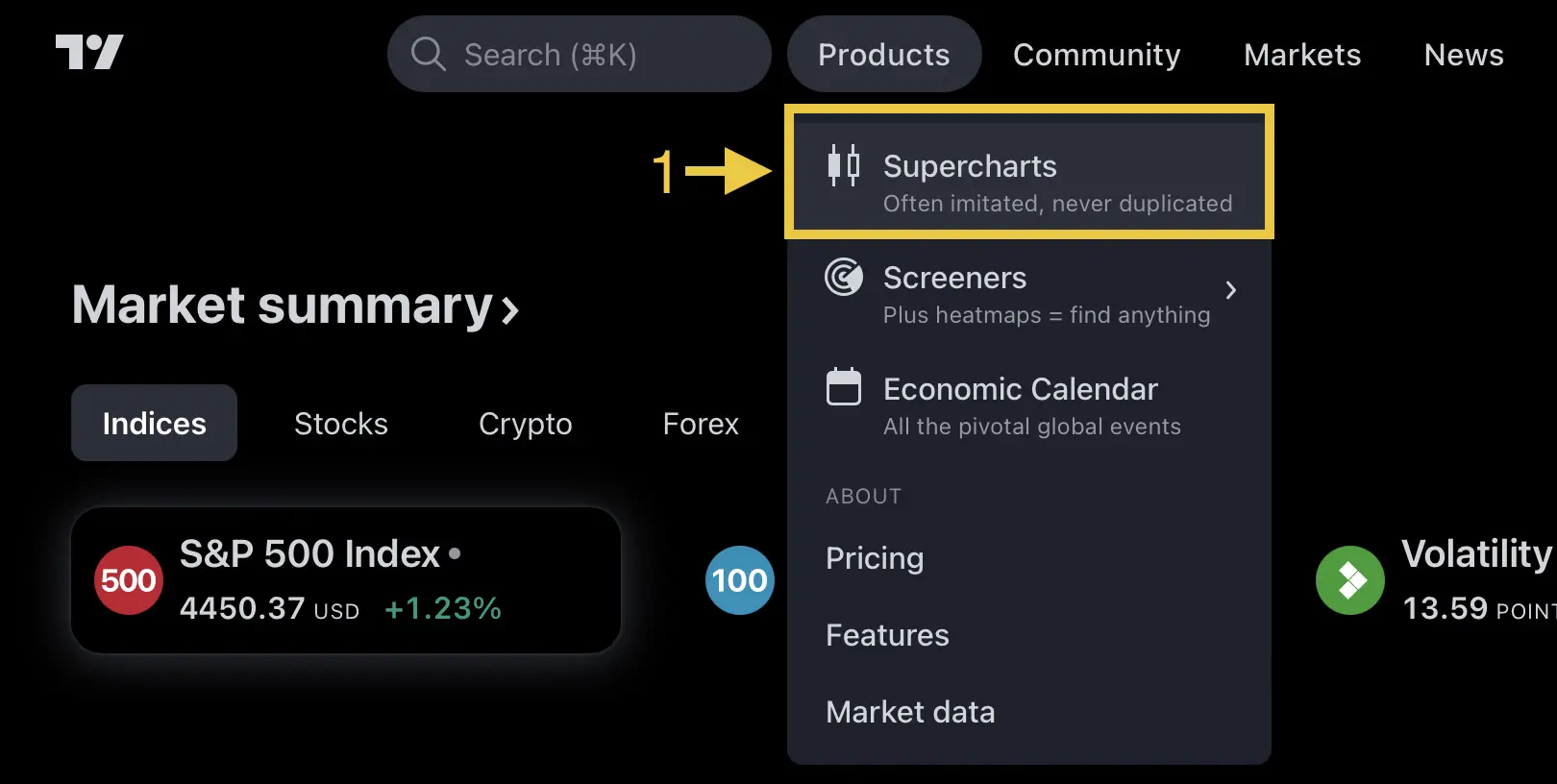
- Sign in to TradingView
- Go to Products > Supercharts
- Select any instrument to open a chart
Step 3: Add TRN Indicators
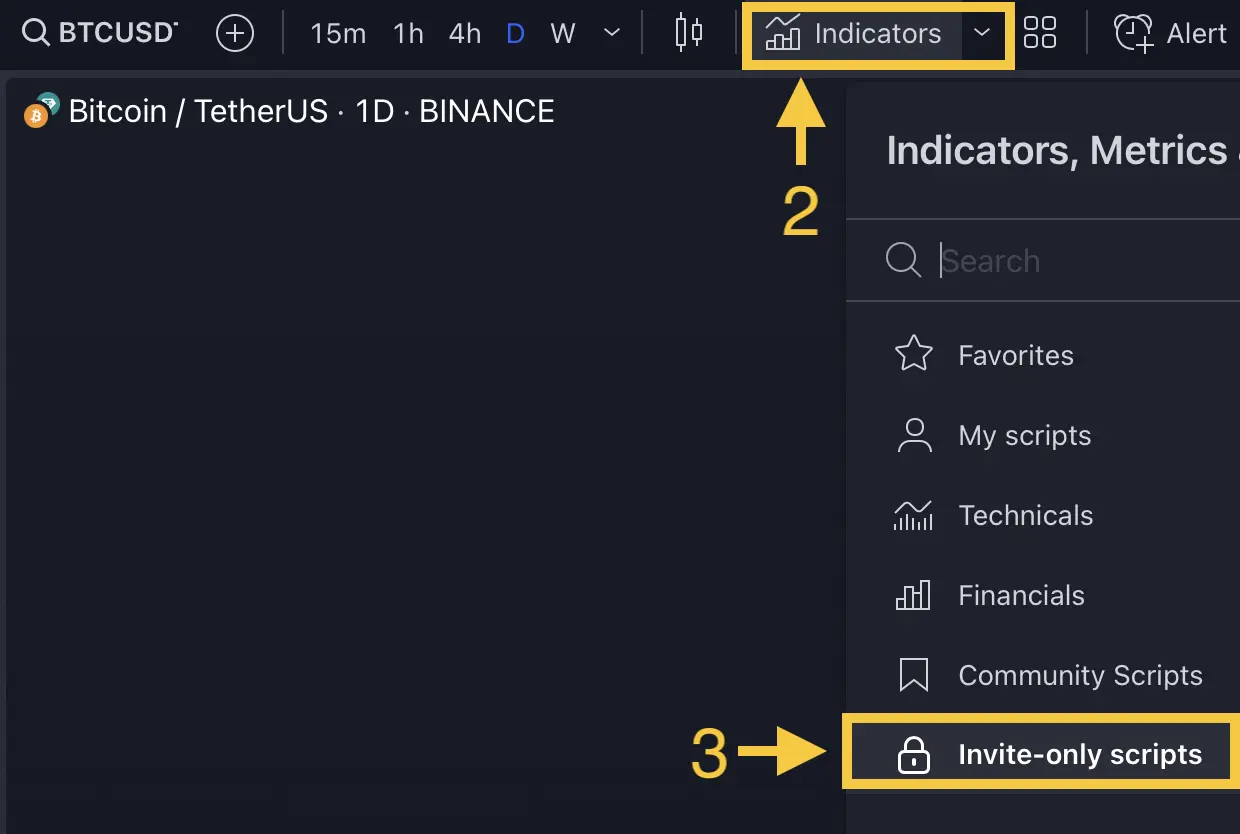
- Click the Indicators button in the top toolbar (or press
/) - Select the Invite-only scripts tab
- Click any TRN indicator to add it to your chart
All TRN indicators you have access to will appear in this tab. If you have subscribed but do not see them:
- Refresh your TradingView page
- Clear your browser cache
- Confirm the TradingView username on your TRN account matches your logged-in TradingView account
- Contact support if the issue persists after 15 minutes
Step 4: Configure Your First Chart
Recommended Starting Setup
For the best experience, start with Trend Bars Pro as your first indicator. It replaces the standard candlestick display with momentum-colored bars.
Hide default candles so they do not overlap with Trend Bars Pro:
- Right-click on the chart background
- Select Chart settings (or press the gear icon)
- Go to the Symbol tab
- Uncheck Body, Borders, and Wick under the candle settings
- Click OK
This gives you a clean chart where Trend Bars Pro controls the visual display.
Adding More Indicators
Once comfortable with Trend Bars Pro, layer in additional system indicators:
- Price Action Suite — adds market structure, supply/demand zones, and fair value gaps as overlays
- Opening Range Pro — draws session-based levels for directional bias
- Swing Suite — marks swing highs, swing lows, and structural levels
The free TradingView plan allows two indicators per chart. To run the full four-indicator system, you need at least TradingView Essential. See our TradingView account tiers breakdown.
Step 5: Save Your Layout
After configuring your chart and indicators:
- Click the layout dropdown in the top-right area of TradingView
- Select Save layout or press
Ctrl+S - Name it something descriptive like "TRN System Setup"
This preserves your indicator configuration so you do not need to reconfigure every session.
FAQ
How long does indicator activation take after subscribing?
Indicator access is activated immediately after checkout. If your indicators do not appear in the Invite-only scripts tab within 15 minutes, refresh your TradingView page, clear your browser cache, or contact support through Discord or email at contact@trntrading.ai.
Can I use multiple TRN indicators on the same chart?
Yes. How many depends on your TradingView subscription tier. The free Basic plan allows two indicators per chart. Essential allows five, which covers the full TRN system. See our TradingView account tiers guide for details.
How do I customize indicator settings after adding them?
Click the gear icon next to the indicator name in the chart's indicator panel, or double-click the indicator on the chart itself. Each TRN indicator has a dedicated settings page in our documentation explaining what each option controls.
Why should I hide default candles when using Trend Bars Pro?
Trend Bars Pro replaces the standard candlestick display with color-coded bars that show momentum state. Keeping default candles visible creates visual clutter and makes it harder to read the momentum information. Hiding them gives you a cleaner, more focused chart.